
Remote Support for macOS
With Lampl IT remote support, I can assist you directly with technical issues – securely, transparently, and only with your explicit consent.
The connection is established via my own servers, hosted in Germany. No external remote support services or third-party providers are used.
Download: Lampl IT Remote Support (macOS)
No installation required – just download, unzip, and start.
How it works
- Click the icon on the left and download Lampl-IT-Fernwartung-macOS.zip.
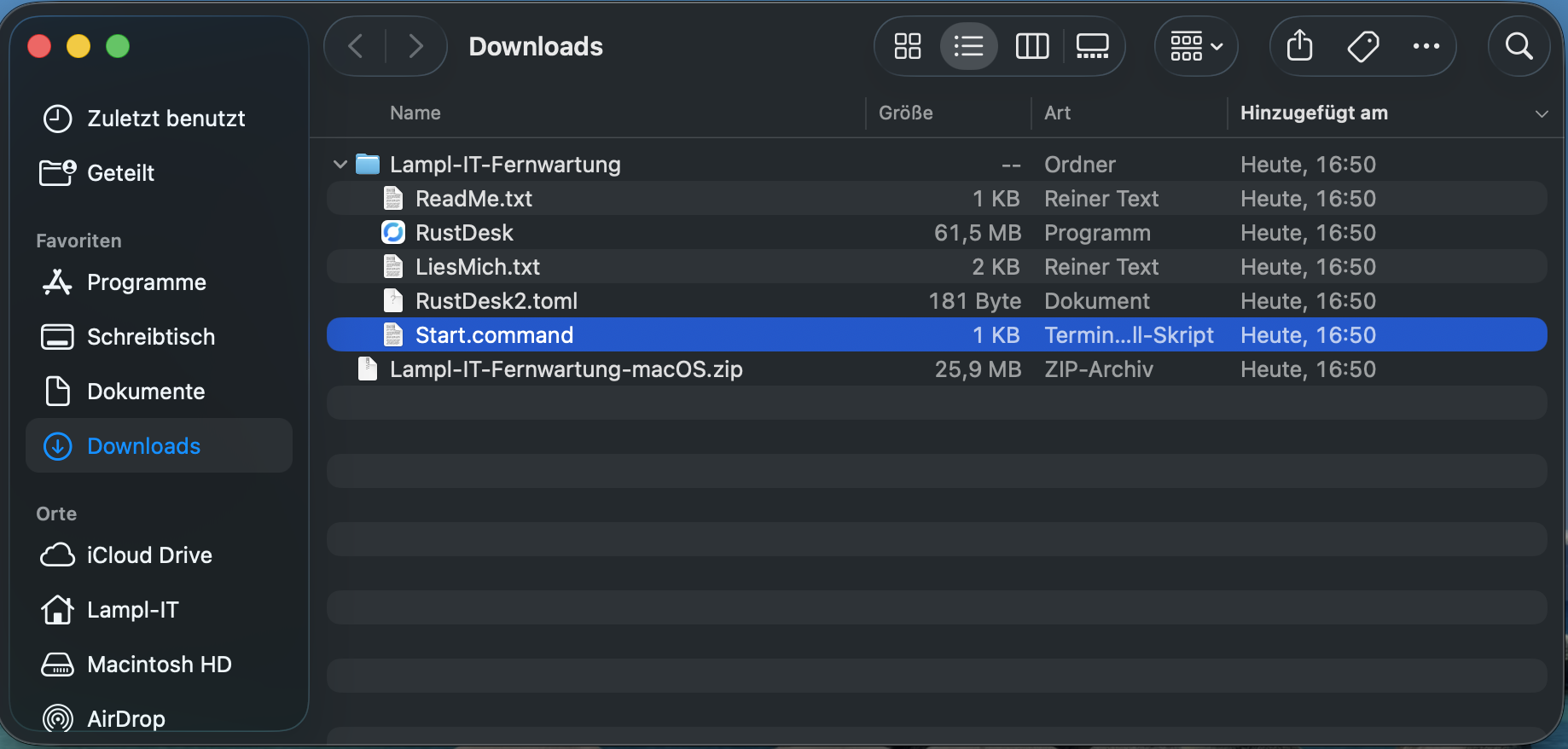
- Unzip the ZIP file and open the folder „Lampl-IT-Fernwartung-macOS“.
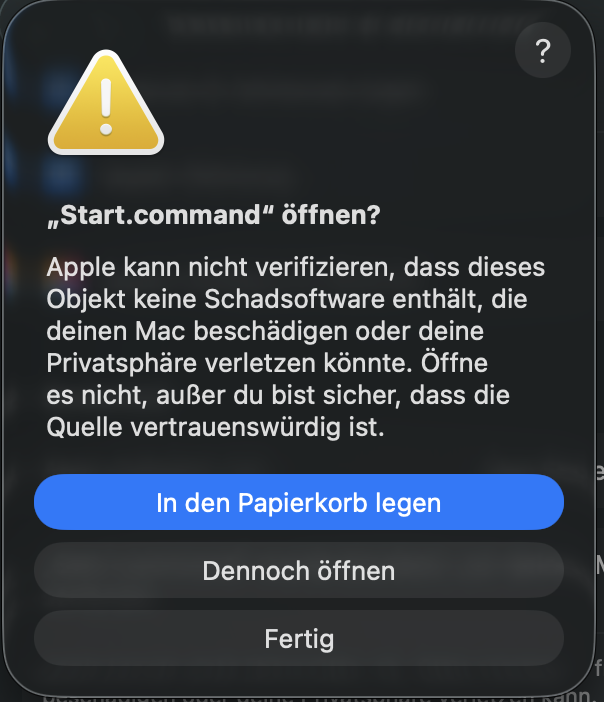
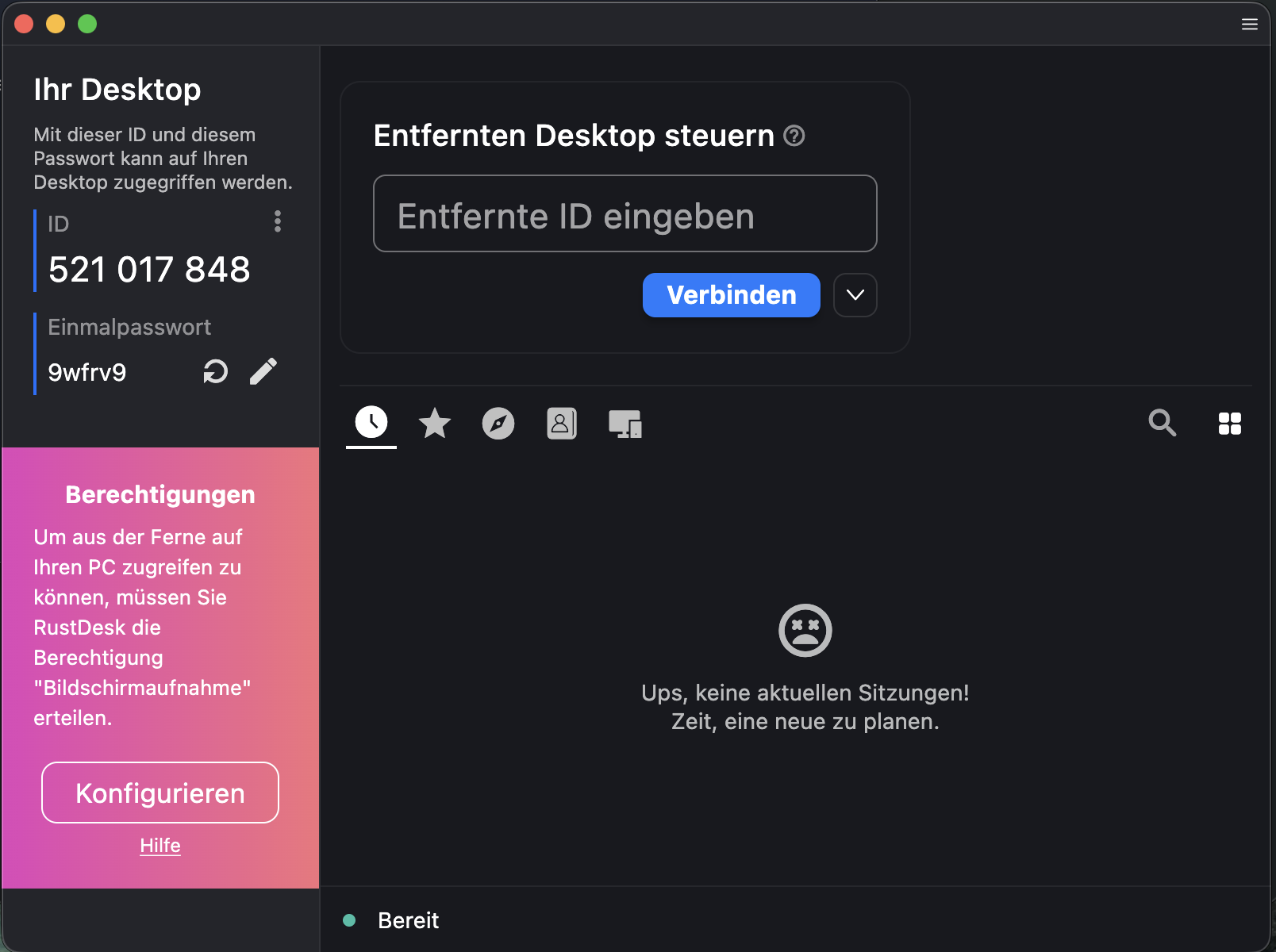
- Double-click Start.command.
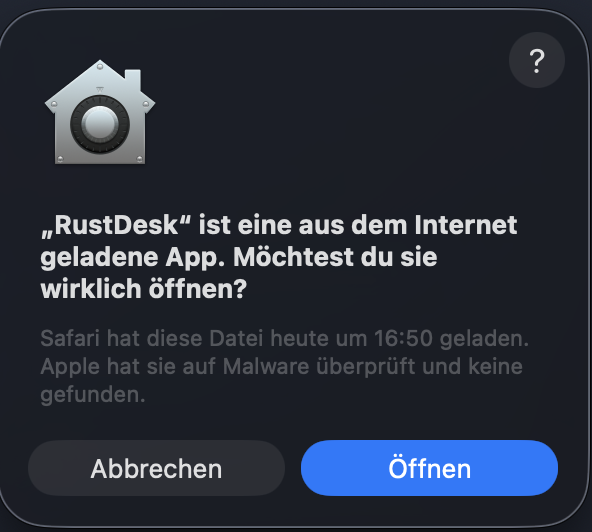
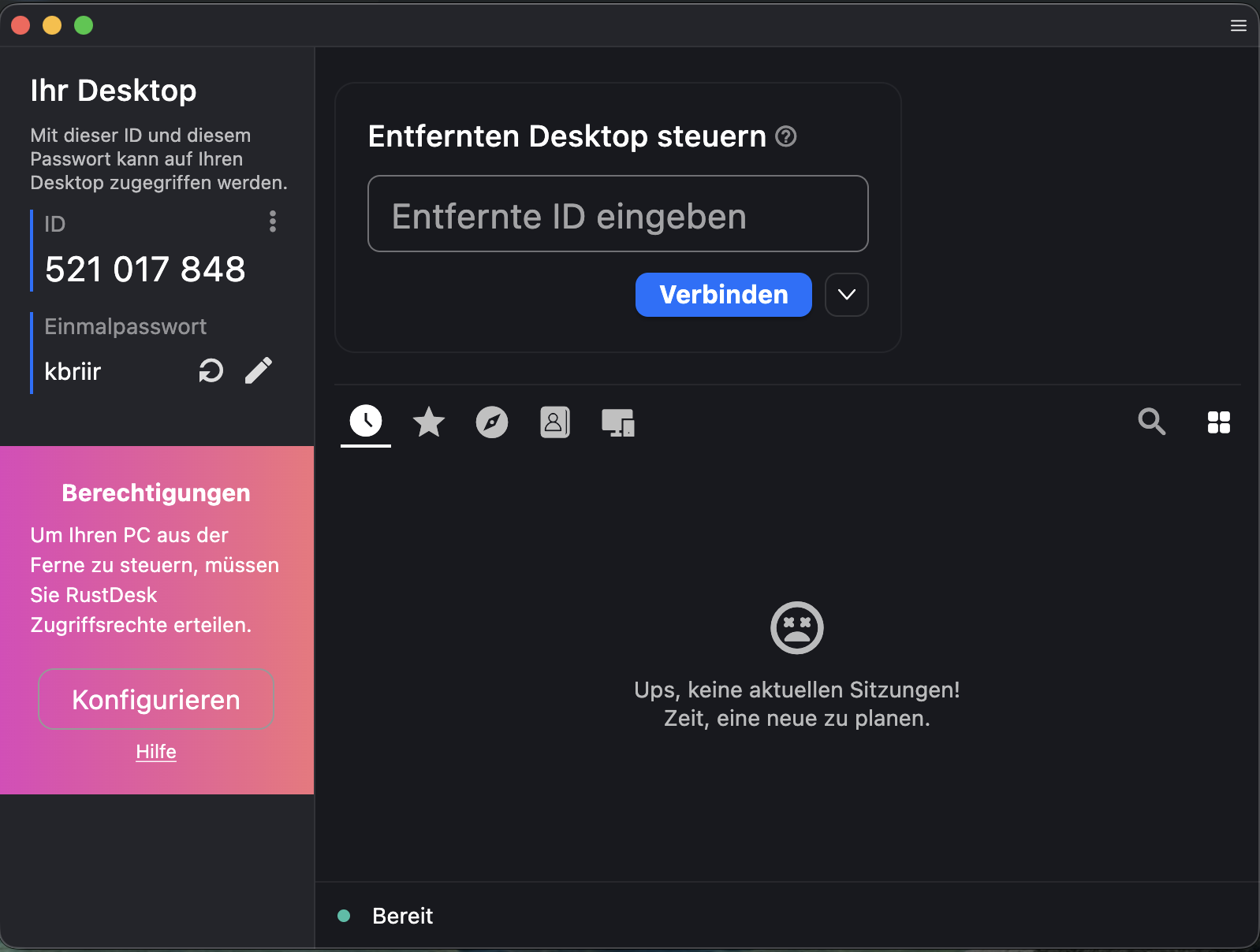
If macOS blocks it: choose Right-click → “Open” → “Open Anyway”. - RustDesk starts. Please provide the displayed ID and password by phone.
- I connect only for the duration of the support session – you can end it at any time.
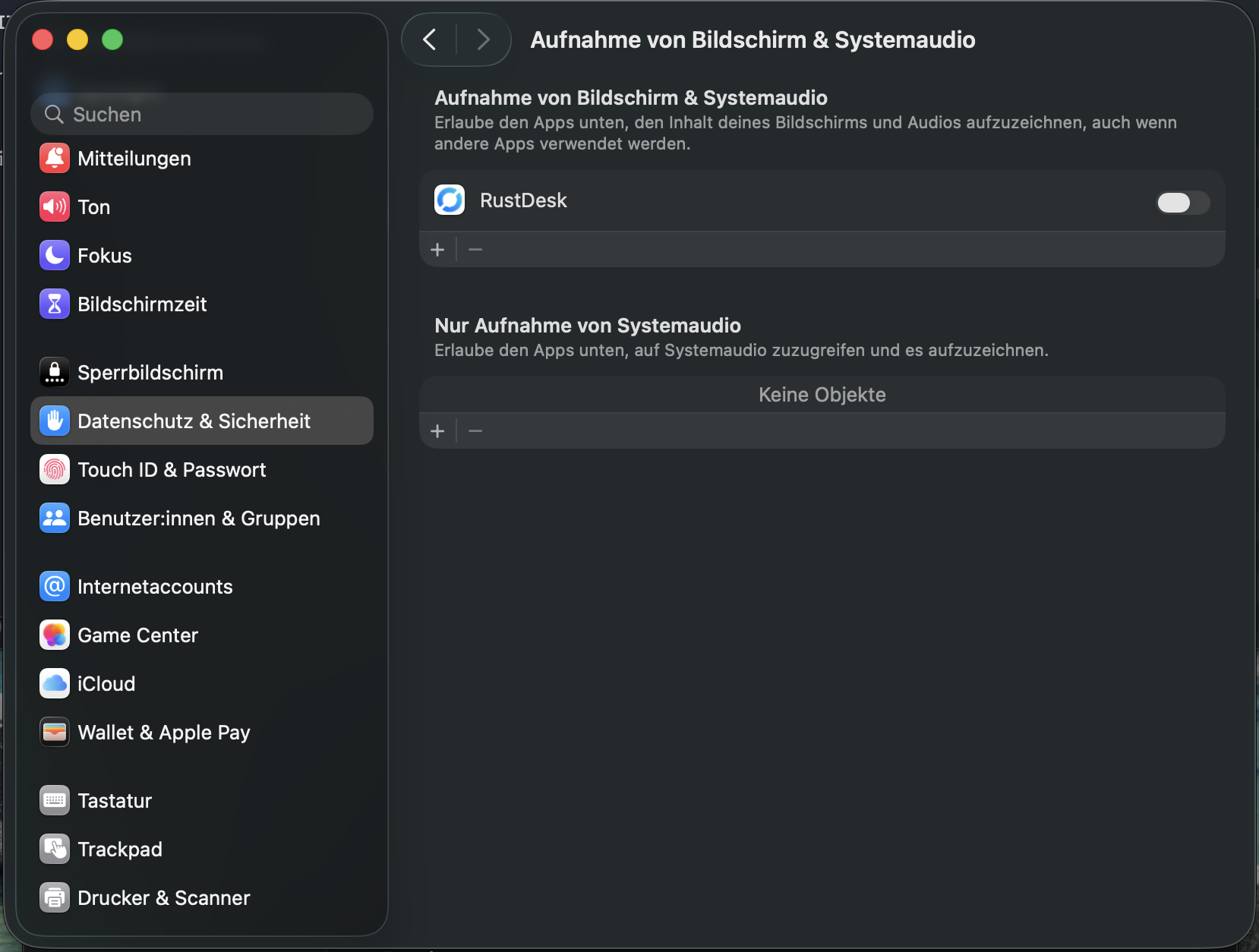
Note: The following images show the startup process on macOS:
Required permissions on macOS
Remote support on macOS requires a few permissions. These protect you and can be revoked at any time.
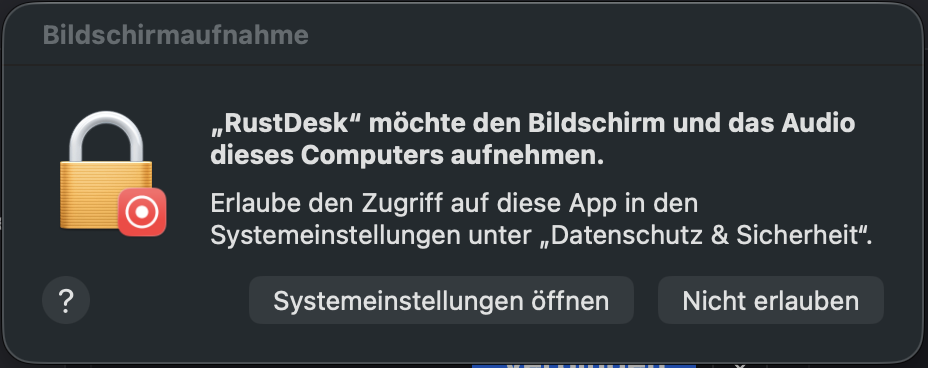
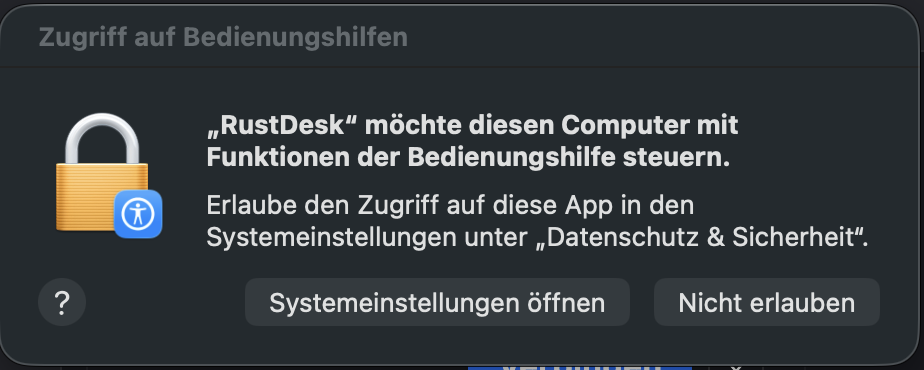
- On first launch, the dialog “Open System Settings” opens automatically.
- Enable “Screen Recording” for RustDesk,
so I can see your screen.
-
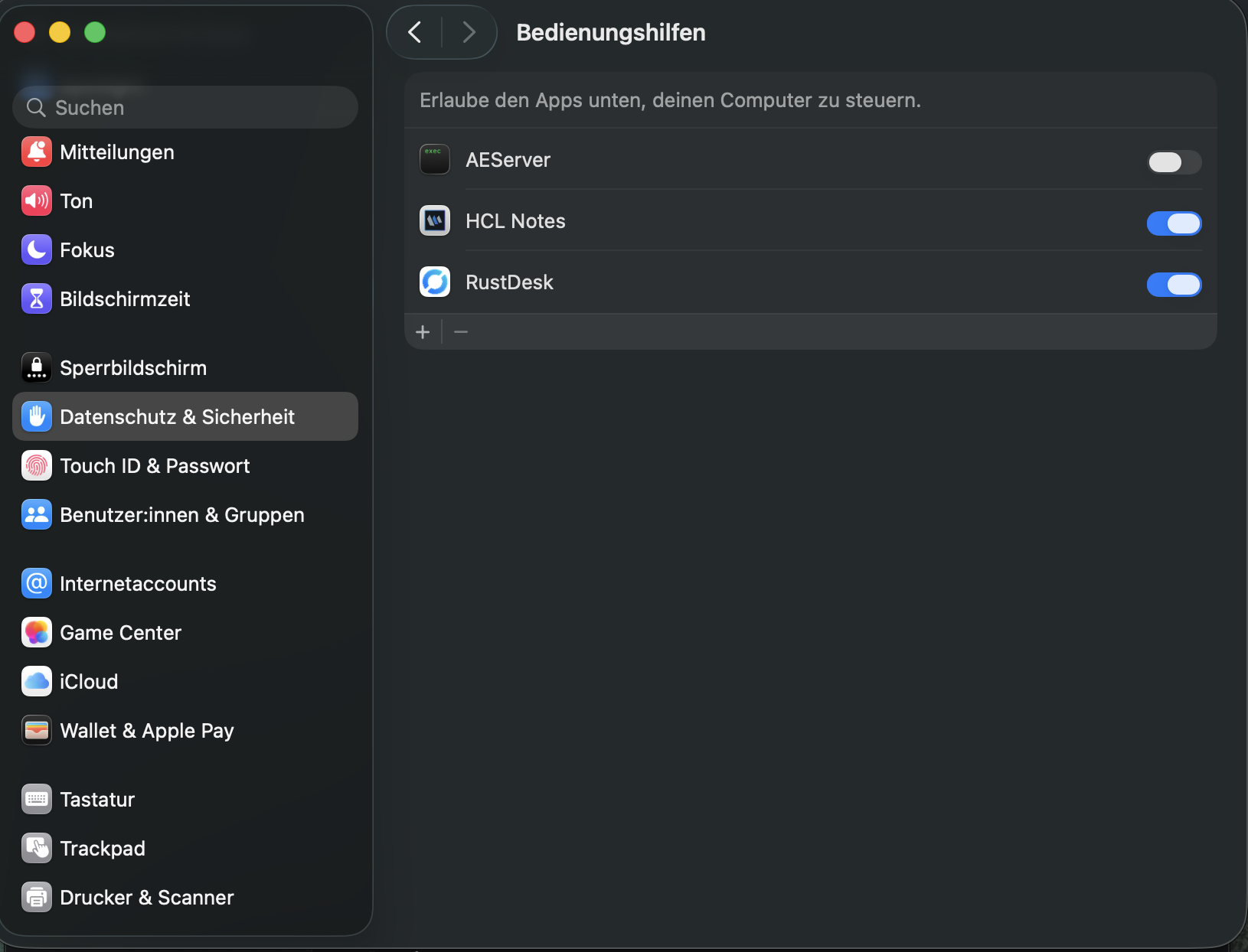
- Also enable “Accessibility” for RustDesk,
so mouse and keyboard can be controlled.
-
- If macOS asks you to do so, please quit and restart RustDesk.
Privacy & Security
- Remote support only with your approval.
- Encrypted transmission.
- Own servers operated by Lampl IT, hosted in Germany.
- No permanent access after the session ends.
Note: Please start remote support only if you have been asked to do so in advance by phone or email.